Before setting up a direct wireless connection, make sure
that both your iOS device and EPSON projector have Wi-Fi
enabled. See your projector documentation for more information
on enabling your product's Wi-Fi connection.
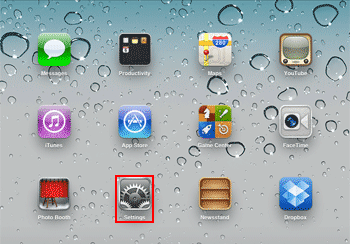
Tap the Settings icon on your iOS device's
Home screen.
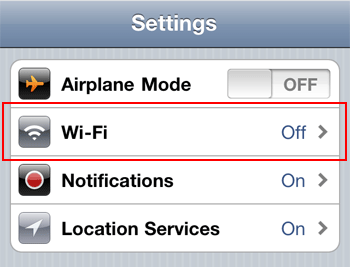
Tap Wi-Fi to open the Wi-Fi Networks menu.
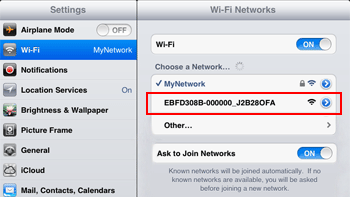
Tap your projector's SSID in the list of available
wireless networks. Note: If you don't know your projector's SSID,
you can find this information in the Network
section of the projector's menu or by pressing the LAN
button on your projector's remote control. See your
projector documentation for more information.
Return to your iOS device's Home screen and open the
iProjection App by tapping the iProjection icon.
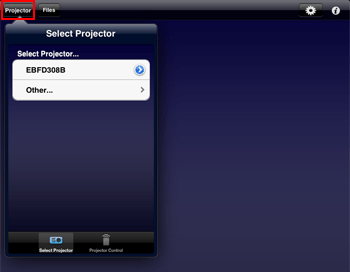
Tap the Projector button to open the Select
Projector menu.
Tap the name the name of your projector in the list
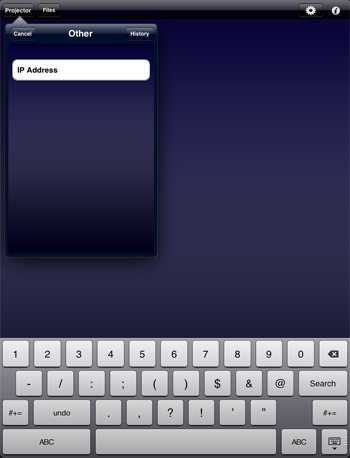
of available projectors. Note: If your product doesn't appear in the list,
tap Other. Enter your projector's IP address
in the IP Address field. If you don't know the
IP address, you can find this information in the Network
section of the projector's menu or by pressing the LAN
button on your projector's remote control. See your
projector documentation for more information.
Tap OK when prompted to confirm the connection
to the projector.
Your iOS device and the Epson projector are now connected. See
Using
the iProjection for iOS App page for information
on using the iProjection App.